Quick start
Run hunt, set it up, and add your first application: a few minutes, with Docker.
Only looking? hunt's demo has made-up data on every page, and keeps nothing once you stop it (Ctrl-C):
docker run --rm -p 127.0.0.1:4848:4848 ghcr.io/arabesquelabs/hunt:demo
1. Run it
In a folder of its own, get hunt's compose file and its settings, and start it:
mkdir hunt && cd hunt
curl -fsSLO https://raw.githubusercontent.com/ArabesqueLabs/hunt/main/deploy/docker/compose.yaml
curl -fsSL https://raw.githubusercontent.com/ArabesqueLabs/hunt/main/deploy/docker/.env.example -o .env
docker compose up -d
- Your data is in the
hunt-datavolume, as a SQLite database. It stays when the container is replaced. - Its settings are in
.env, each explained there: which version, its owner (or make them in the launcher), where it listens, and another database. - Who can reach it:
127.0.0.1keeps it to this computer. To reach it from elsewhere (HUNT_BIND=0.0.0.0), make its owner's account in the next step first, and put it behind HTTPS.
Other ways:
- Kubernetes:
deploy/kubernetes, forkubectl apply -k. - From a clone of hunt:
make doctorsays what you have; thenmake docker-updoes the above,make k8s-upthe Kubernetes one, ormake install && make servebuilds hunt from source (with Rust 1.85 or later, and Node).
Docker has more: versions, updating and backups; and The database, for PostgreSQL or MySQL.
2. Set it up
Open http://localhost:4848. A new hunt opens on its launcher: a few steps, before the board. Its owner's account comes first, and can't be skipped; the rest can be changed later, in Settings.
-
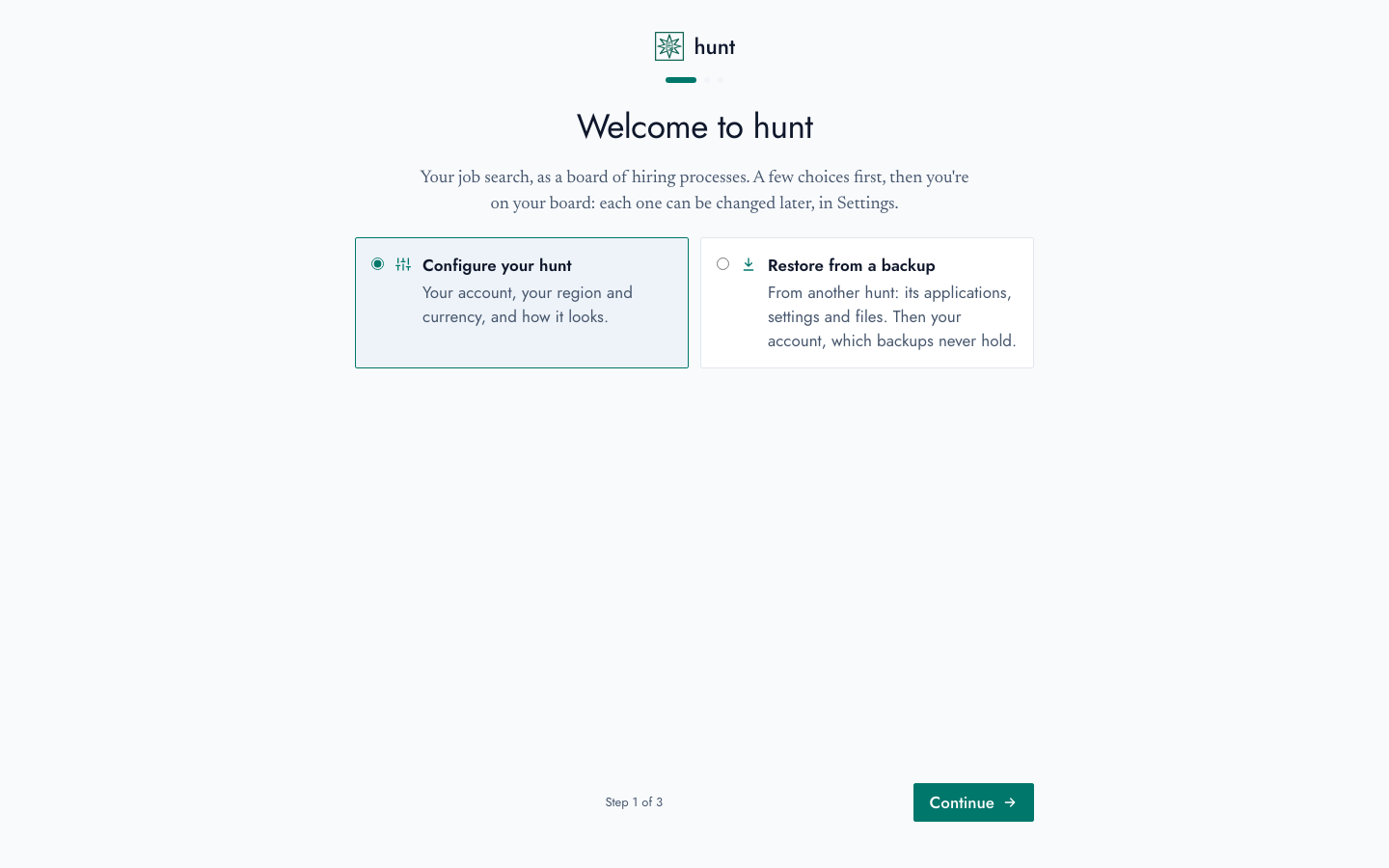
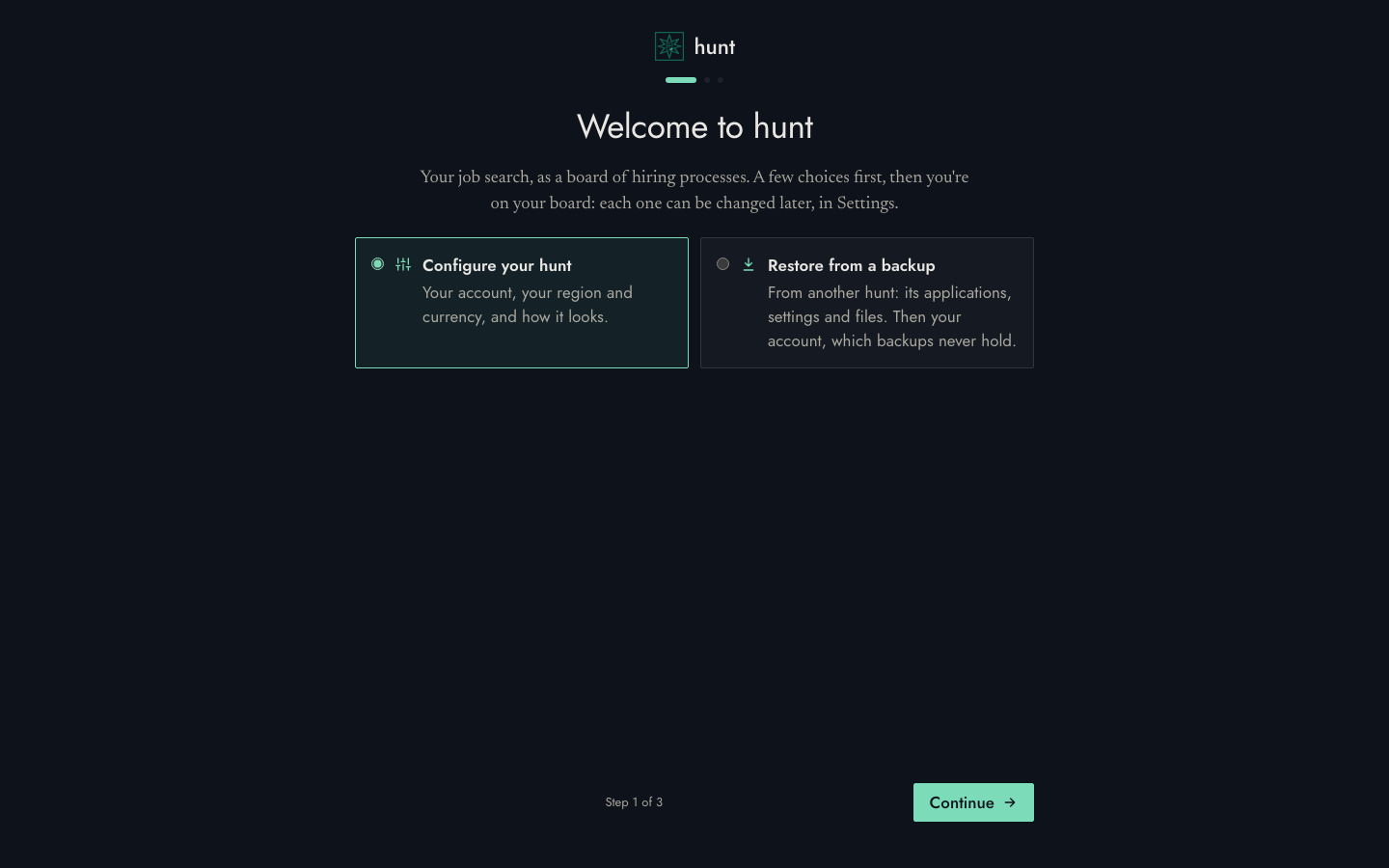
Welcome: what hunt is, and how to set it up: configure it afresh (chosen to begin with), or restore a backup from another hunt. A backup brings its applications, settings, cycles and files, so it goes straight on to authentication, then where to start.
-
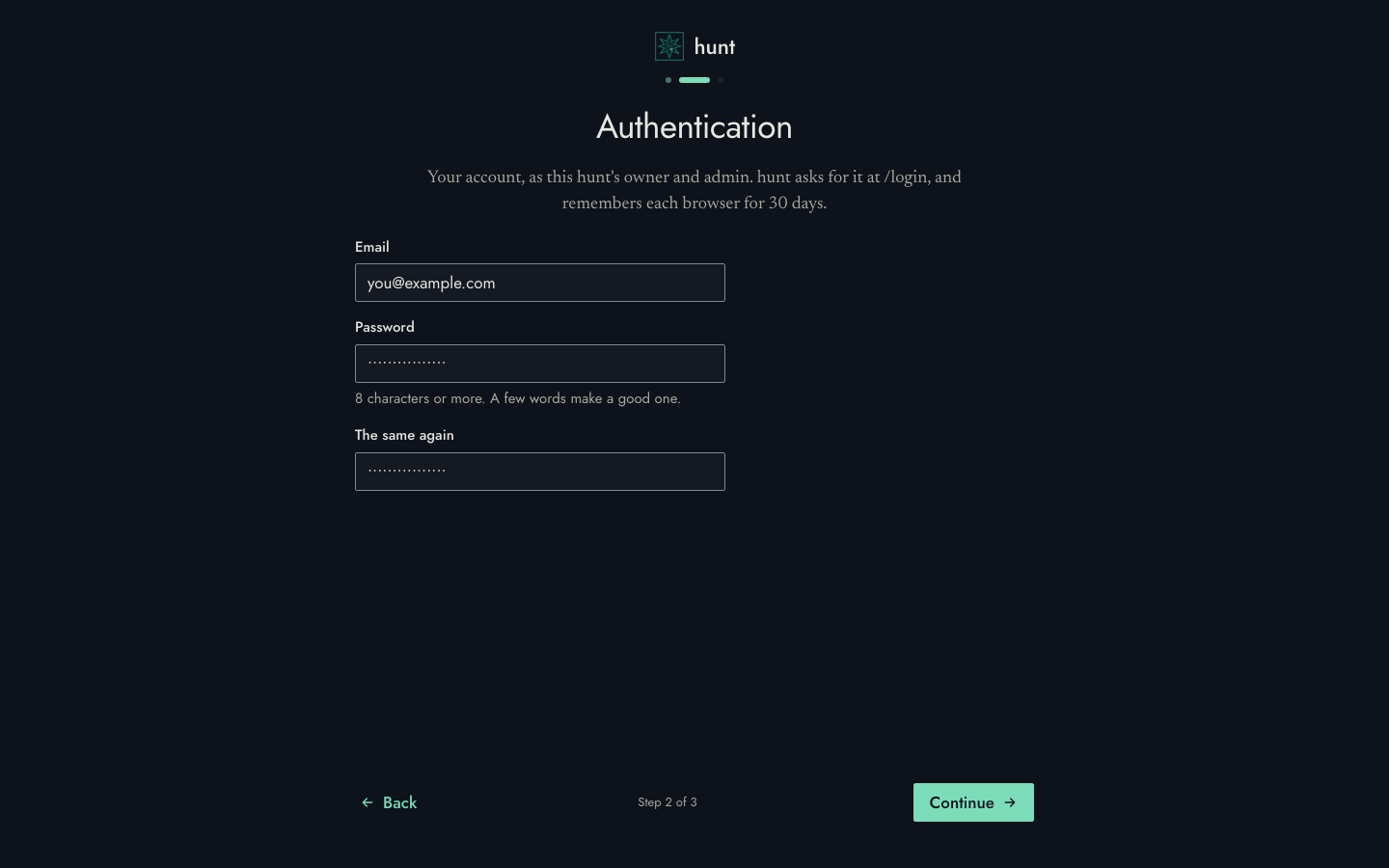
Authentication: your account, as the hunt's owner: an email address and a password (8 characters or more). You sign in with them at
/login, and hunt remembers each browser for 30 days. You run the hunt too: you're its admin (Admin, in the sidebar), and it's yours alone, with sign-ups closed, until you open them or invite someone. The password's kept in the database as a hash (never in a backup), and both are changed in Settings → Account. Until there's an owner, nothing needs signing in, so make it straight away. Started withHUNT_ADMIN_EMAILandHUNT_ADMIN_PASSWORD, hunt makes the owner itself, and the launcher says who.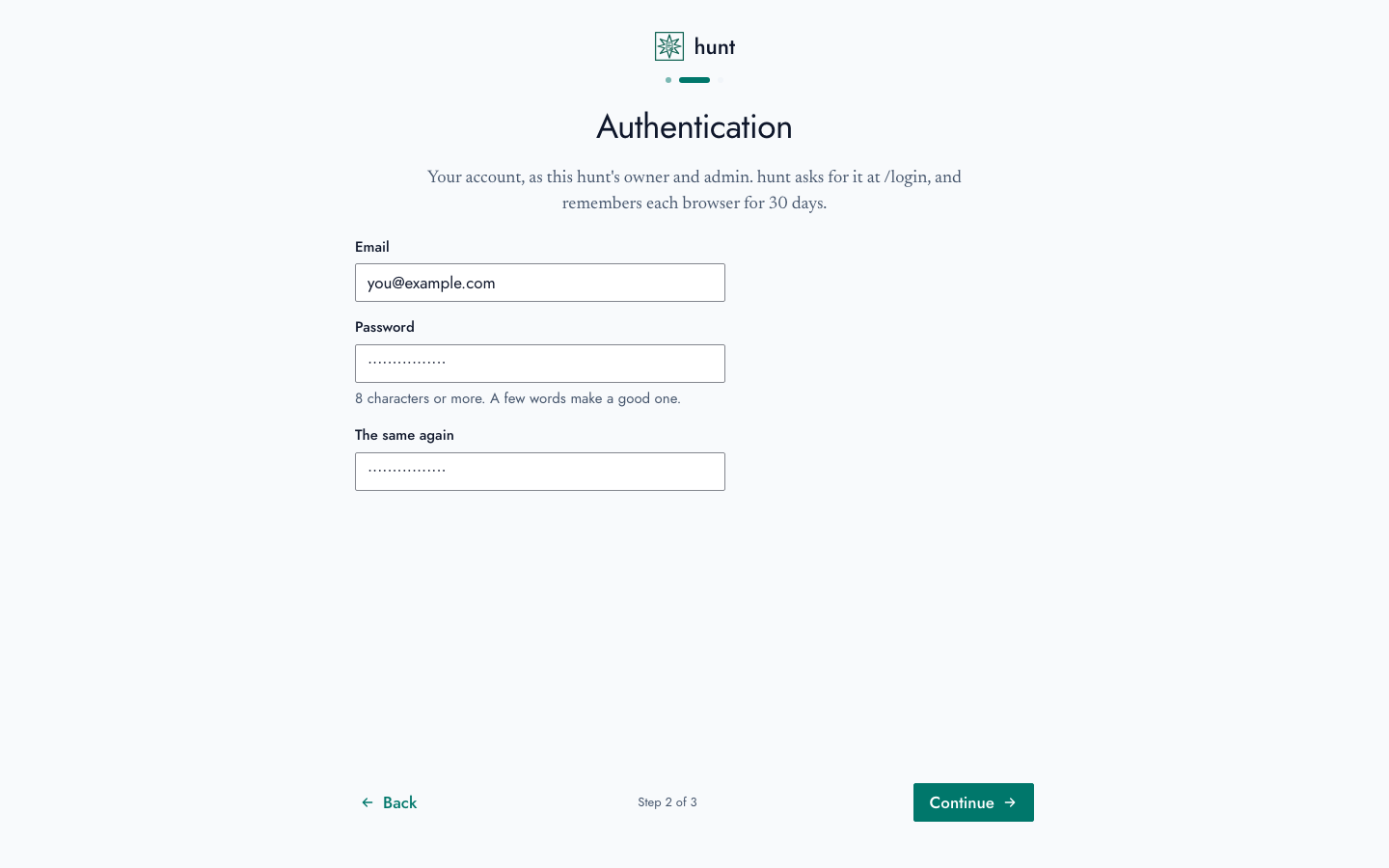
-
Your settings, filled in from your browser:
- Region and currency: the region dates and numbers are written for, your time zone (interview times are in it), the currency pay is shown in, and the day weeks start on. Times are 12-hour (2:30 pm) until you change them in Settings → General.
- Appearance: light, dark, or matching your device.
- Whether you live in the UK, for working out take-home pay after tax: on when your browser's in the UK, or on UK time.
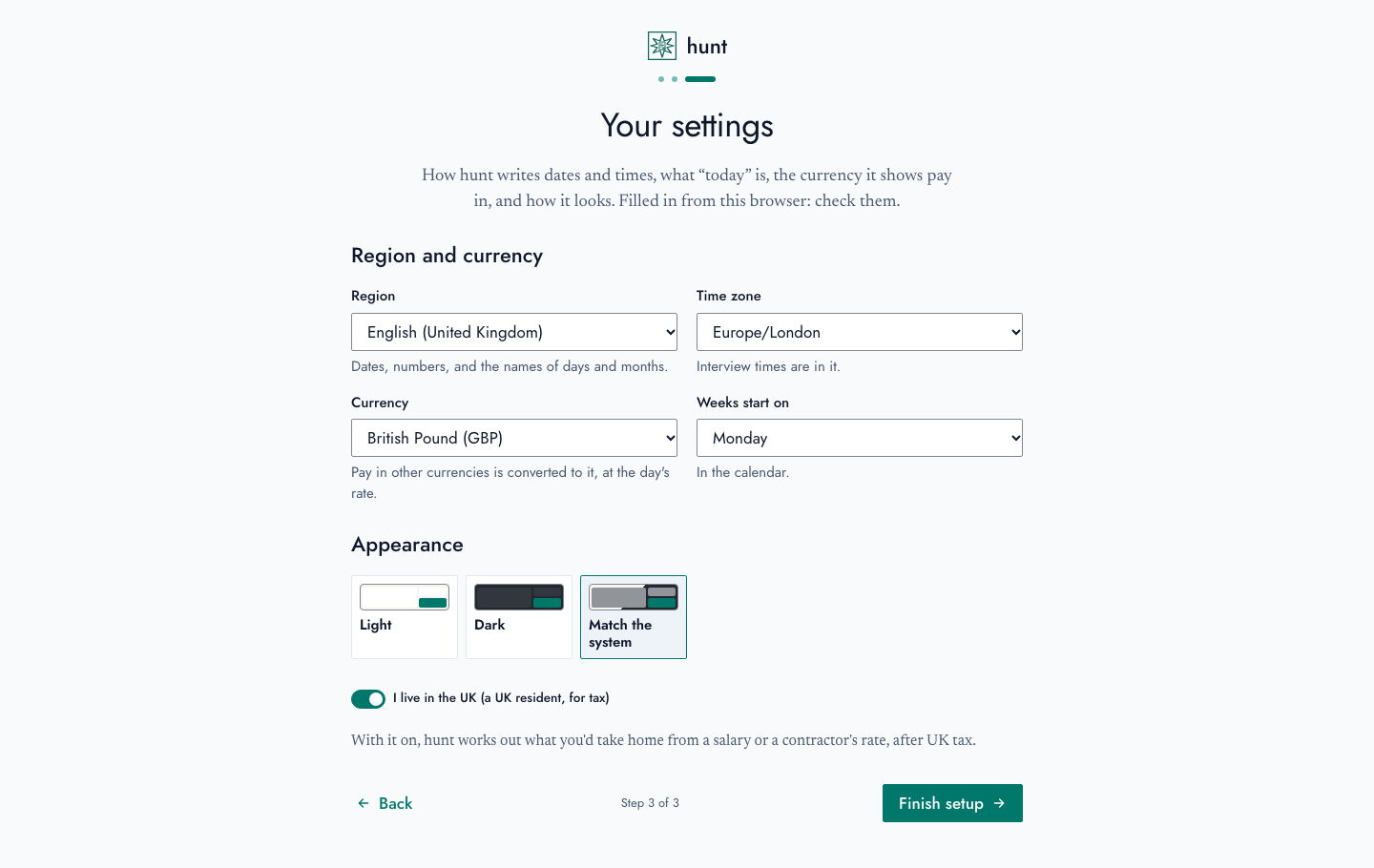
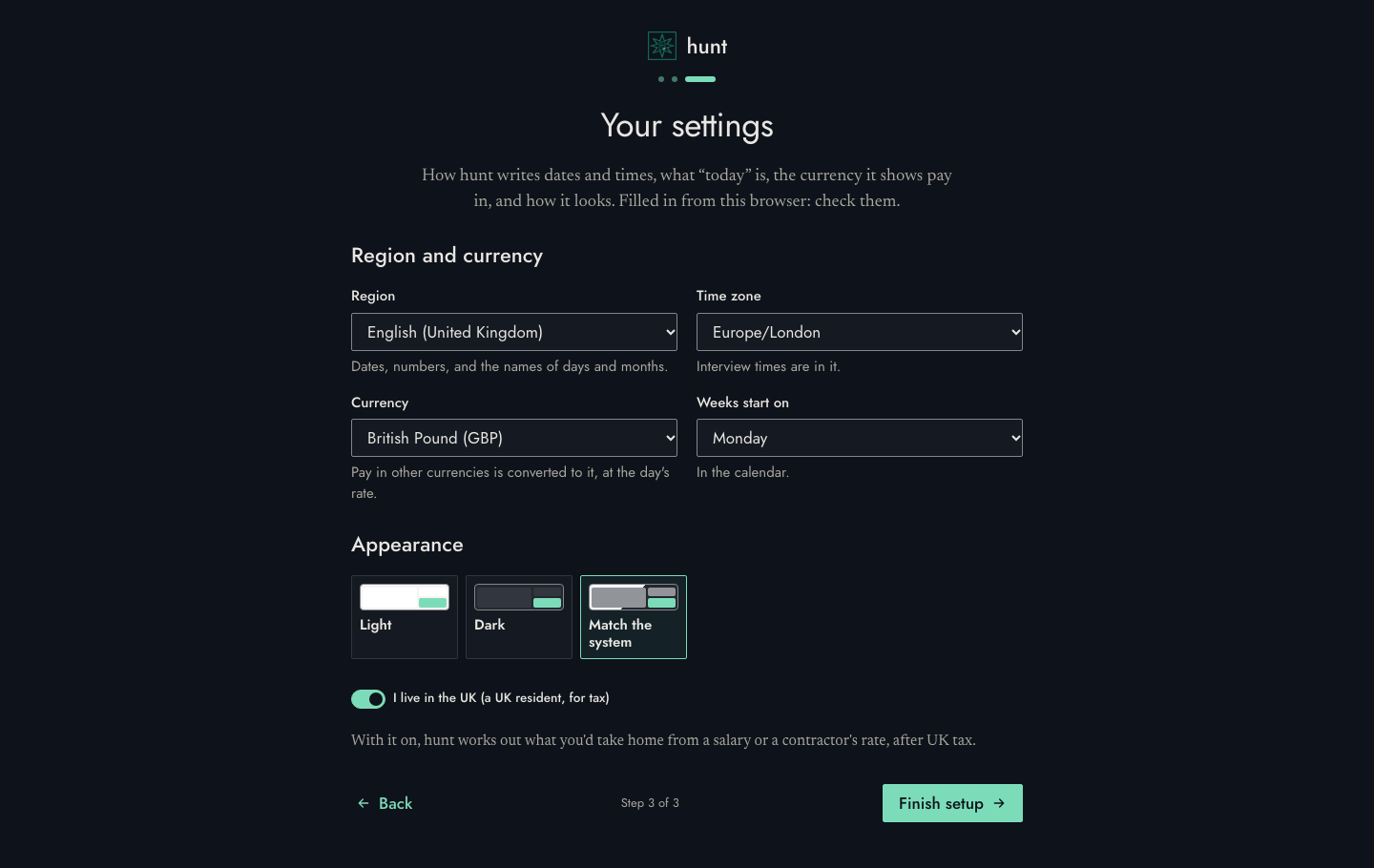
The language (English or Arabic) is in Settings → General.
Forgotten the password? Start hunt with HUNT_ADMIN_EMAIL and
HUNT_ADMIN_PASSWORD set (in .env, with Docker): the password replaces
yours, and you sign in with it.
3. Start your job search
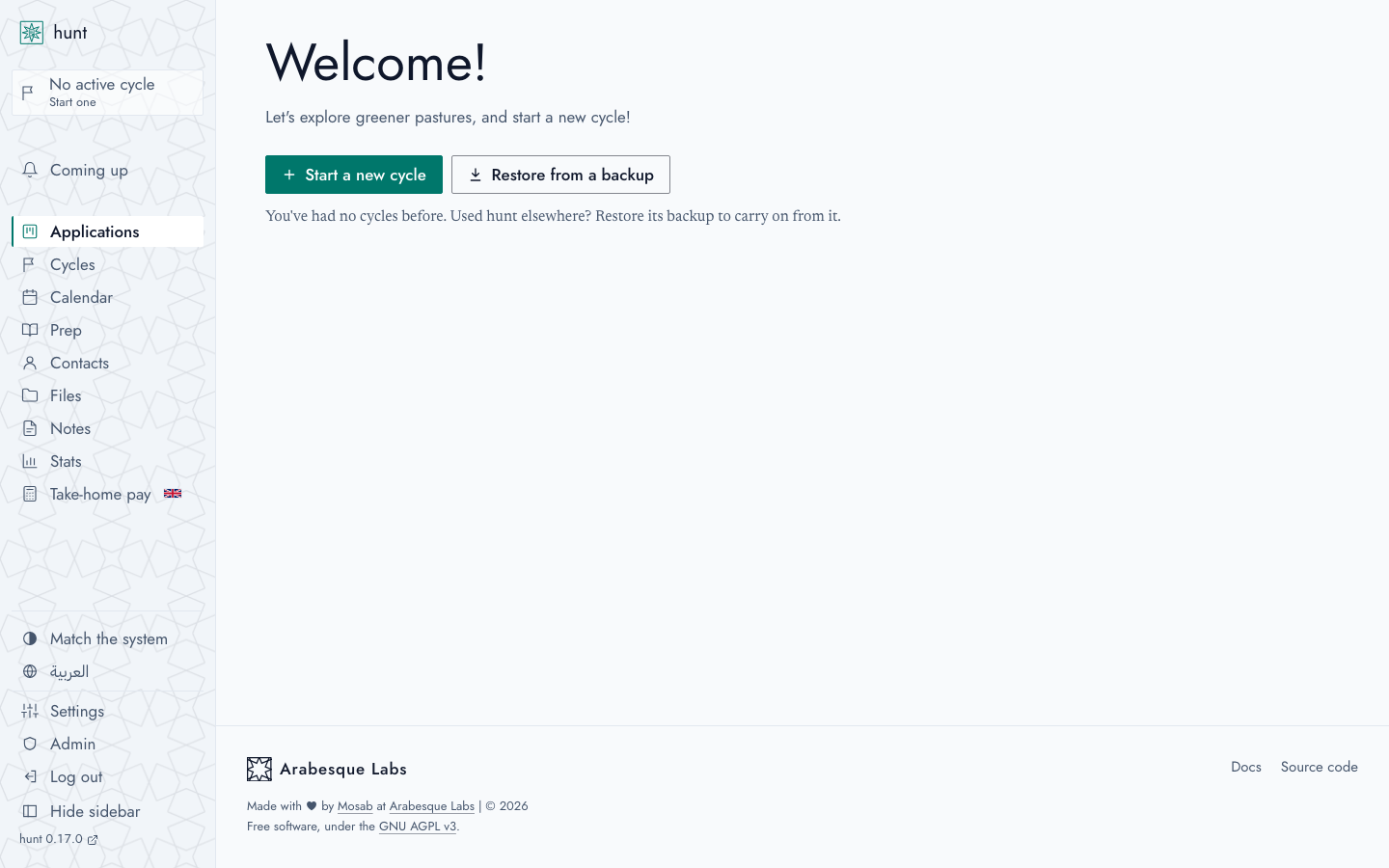
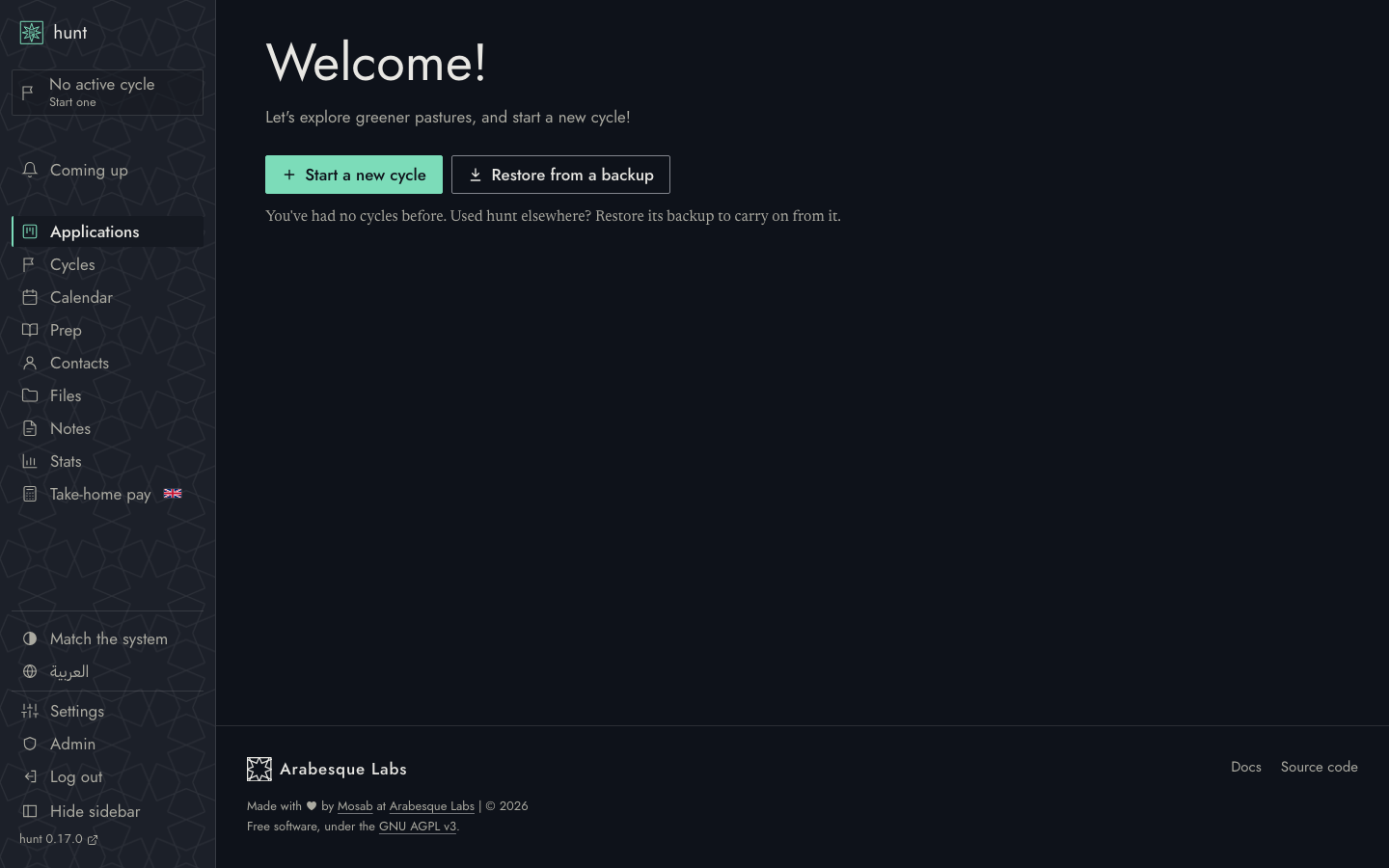
hunt keeps each job search as a cycle, from its first application to its end: when you look again in a year or two, the next one starts afresh, and this one keeps its board. A new hunt has none yet, so the board offers to start one: choose Start a new cycle, and give it a name ("Autumn 2026", say, or "Remote, Europe") and when it starts. Used hunt elsewhere? Restore from a backup, beside it, carries on from that hunt instead.
4. Add your first application
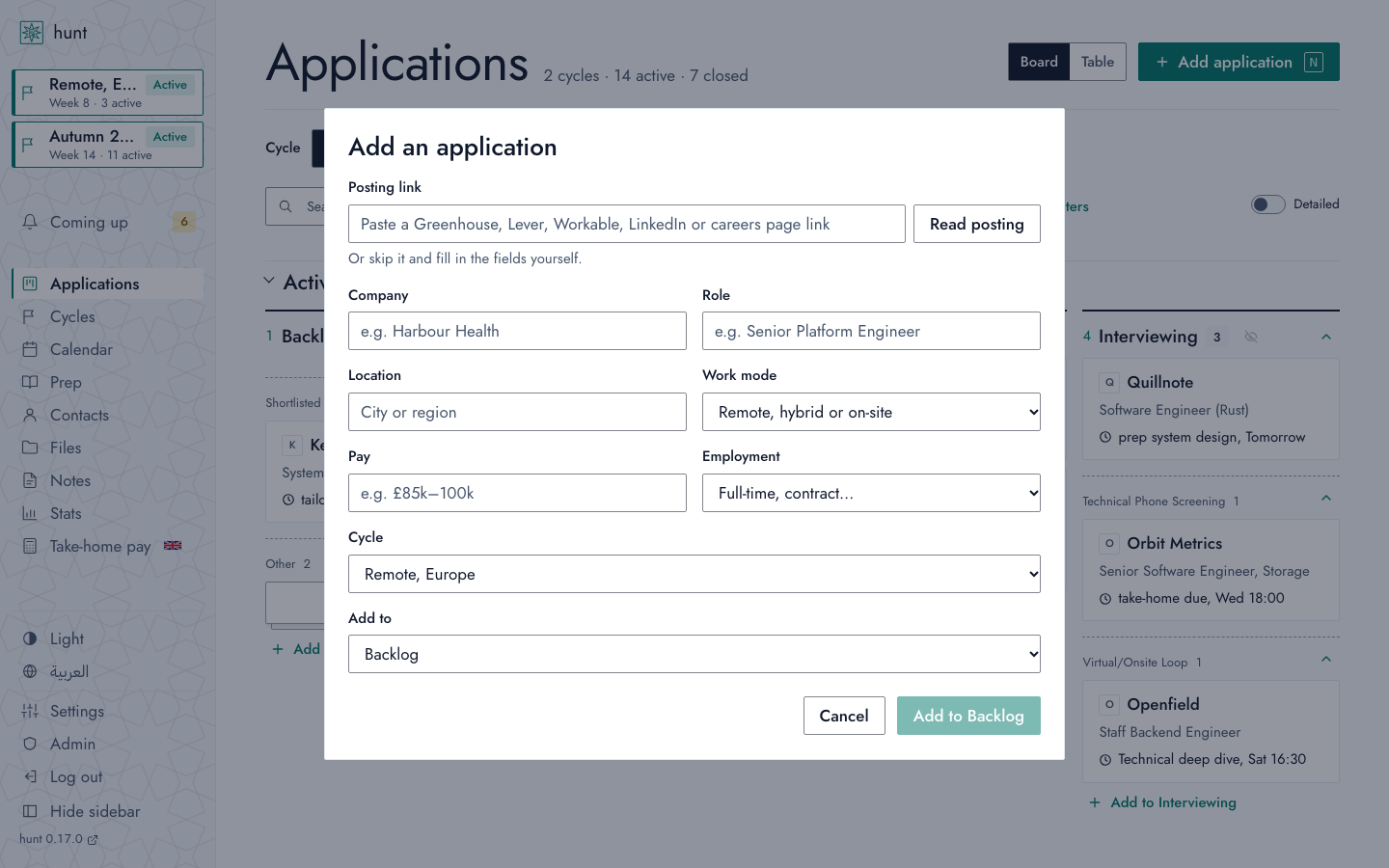
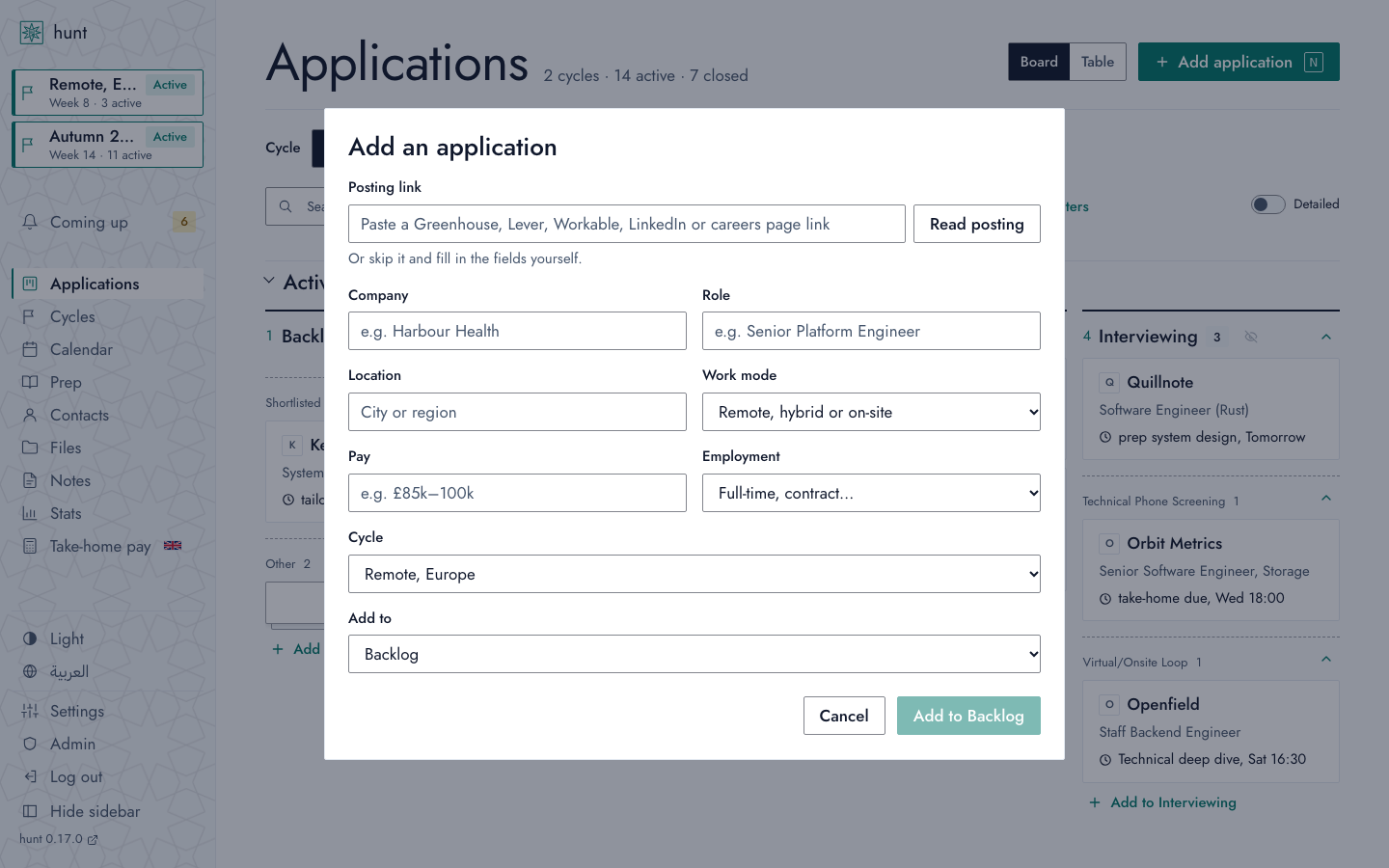
- On the board, choose Add application (or press N).
- Paste a job posting's link (from LinkedIn, Greenhouse, Lever, Ashby, Workable, or a careers page) into Posting link, and choose Read posting. hunt fills in the role, the company, the pay and the description. No link? Type the company and the role instead.
- Choose the stage it's at (Applied, say), and add it.
It's a card on the board now, in your job search.
5. Keep it moving
- Drag the card along as things move: from Applied to Screening to Interviewing. A column can be divided into sub stages, such as Waiting on a decision.
- Open it to add an interview step (when, how, with whom), a note, the people involved, or the CV you sent.
- Give it a reminder with a date ("send availability", tomorrow). It shows on the card, and what's due today and tomorrow (reminders, interviews, closing dates) is under Coming up, in the sidebar. Interviews and closing dates are on the Calendar too.
- Close it by dropping it on a reason, in Terminated Processes: they rejected me, I withdrew, they went silent. Drag it back to reopen it.
Core concepts explains how these fit together.
6. Use the command line (optional)
Everything the board does, from your terminal. With Docker, the image has
it: docker exec hunt hunt board. Installed with cargo install, it talks
to the hunt at HUNT_URL (http://127.0.0.1:4848 unless you say), and
signs in as the owner with HUNT_EMAIL and HUNT_PASSWORD:
hunt add --link https://jobs.ashbyhq.com/acme/1234 -s applied
hunt next acme "send availability" --due tomorrow
hunt board
Or work on hunt, with demo data
To change hunt itself, its demo data fills a throwaway database (it needs Rust, Node, git and sqlite3):
git clone https://github.com/ArabesqueLabs/hunt && cd hunt
make dev-demo   # builds hunt, fills a throwaway database with the demo data, and serves it on http://127.0.0.1:4848
make            # the same, empty: the launcher, every start
Next steps
- Core concepts: what hunt is made of.
- The web UI: every page, in detail.
- What's public, and what needs signing in: the owner's account, a sign-in proxy, or Cloudflare Access.
- Backups: keeping a copy, and moving to another database.